 PreConstruct AI
Using it
Every tab, in the order you work them
Eight tabs, left to right, with a picture of each screen where the work happens. The pictures are the running product on the sample set every new account can open, taken 11 October 2026.
Prefer to be shown on your own screen? Open any project and press Show me around. It points at the real controls and waits for you.
Plans
Where the drawing set goes, and the only place one of your bids is spent. Your browser counts the sheets before anything is uploaded, so the cost is known before it is committed.
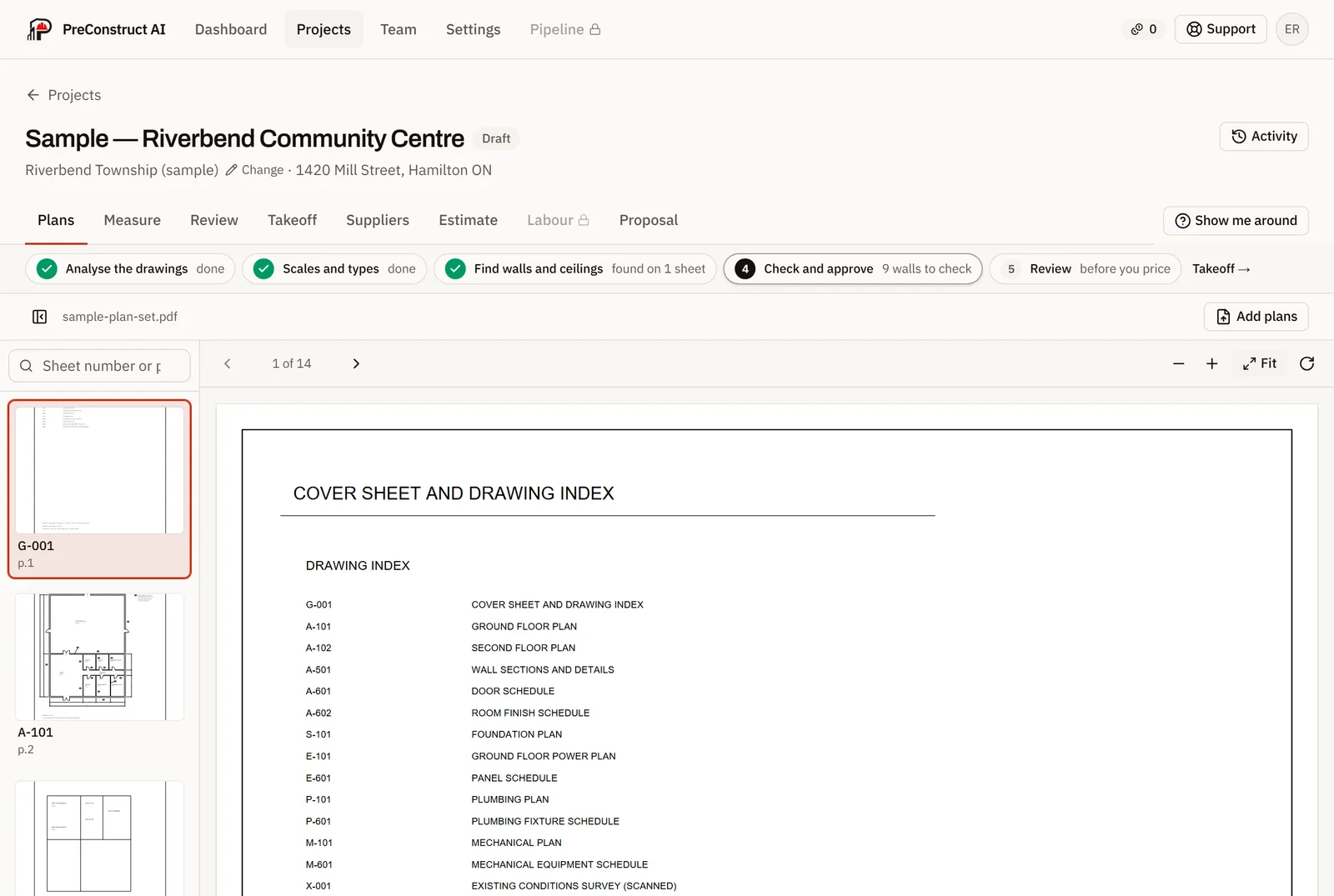
On this tab
- Add plans: drop a PDF or press to pick one
- The sheet list, its search by sheet number or page, and clicking through to any sheet
- Zoom, Fit, and stepping from sheet to sheet
- Analyze blueprint, which reads the text on every sheet, and Re-run analysis afterwards
- A revised set: it is compared with the one it replaces sheet by sheet, and only the sheets that changed are read and charged
Measure
The heart of it, worked in four numbered steps. The first three set the job up; the fourth is beside the drawing, where each wall is checked and sent to the takeoff as the materials it buys, with the arithmetic beside every quantity.
Step 1. Confirm the scales
Each sheet's scale is read off its title block. Check it beside the drawing and confirm it, or set one from a printed dimension by clicking its two ends. Add a scale covers a sheet that printed none. Nothing measures on a sheet until its scale is confirmed.
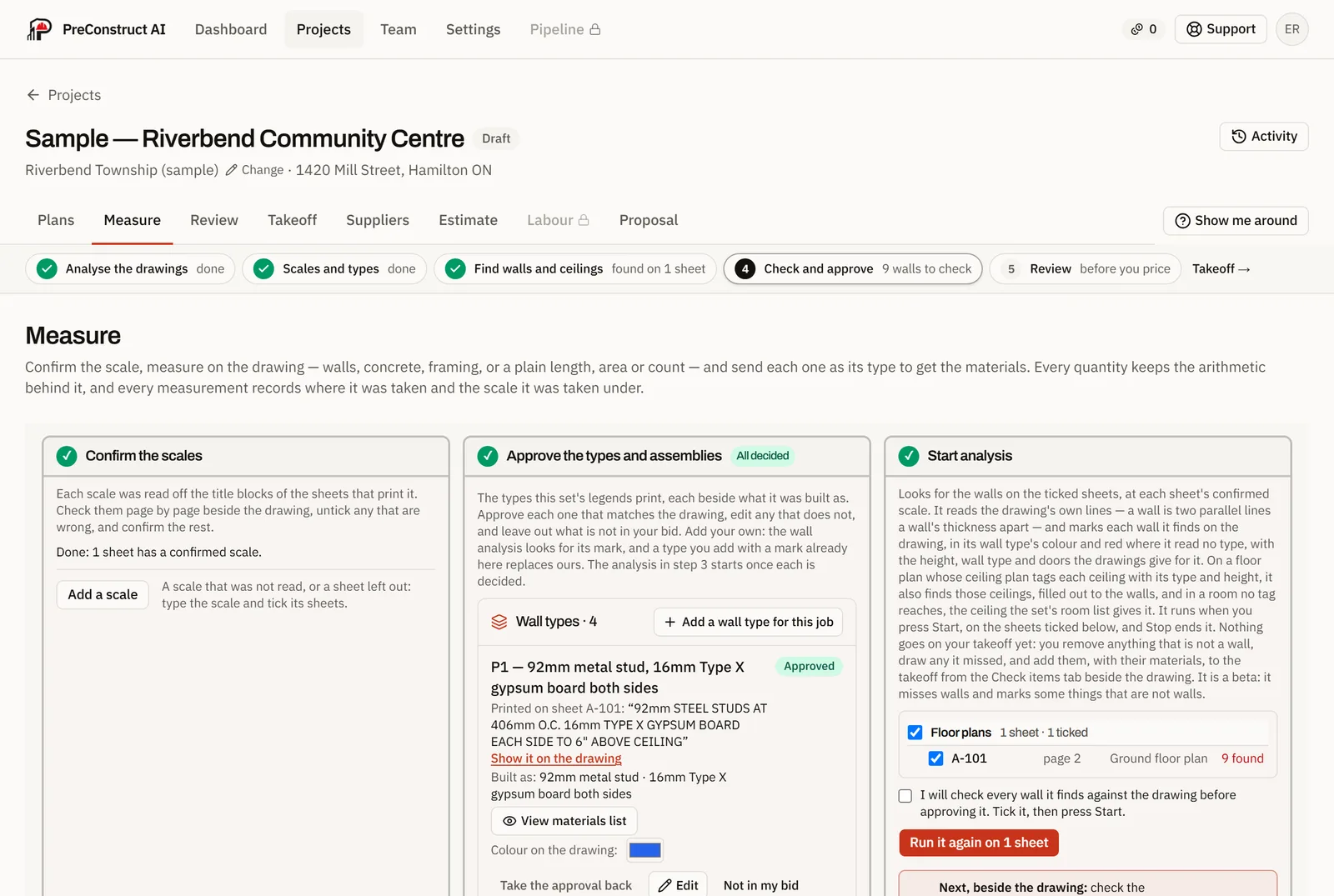
Measure, steps 1 to 3: the scale confirmed, each wall type beside the legend line it was read from, and Start. Step 2. Approve the types and assemblies
Every wall and ceiling type the set's legends print is listed beside the line it was read from and what it was built as. Show it on the drawing boxes that line on the sheet, and View materials list shows what the type buys. Approve each one, edit it, or mark it Not in my bid; Add a wall type for this job adds your own. Each type has a colour on the drawing, which you can change. The analysis in step 3 starts once every type is decided.
Step 3. Start analysis
Tick the sheets, tick the box agreeing to check every wall it finds, and press Start. Wall suggestions (beta) look for walls on those sheets, and for ceilings where a ceiling plan tags them; Stop ends it. Nothing goes on your takeoff. It misses walls and marks some things that are not walls, which is why every one is yours to check.
Step 4. Check and approve, beside the drawing
Check items is one table with tabs for Walls, Doors and windows, Ceilings, Approved and Removed. A wall's row gives its length, height, depth and type, what it still needs, and why the search doubts it. Answer on the row, or tick several walls and answer once. Look at each on the drawing, then Approve to takeoff, Edit or Delete. An approved wall moves to Approved, where Take back returns it; a deleted one waits in Removed; a changed one can be put Back to as detected. A wall it missed is drawn with one click inside it, and Add by hand measures anything else: a wall, concrete, framing, or a plain length, area or count. Measured lists what is measured on the sheet.
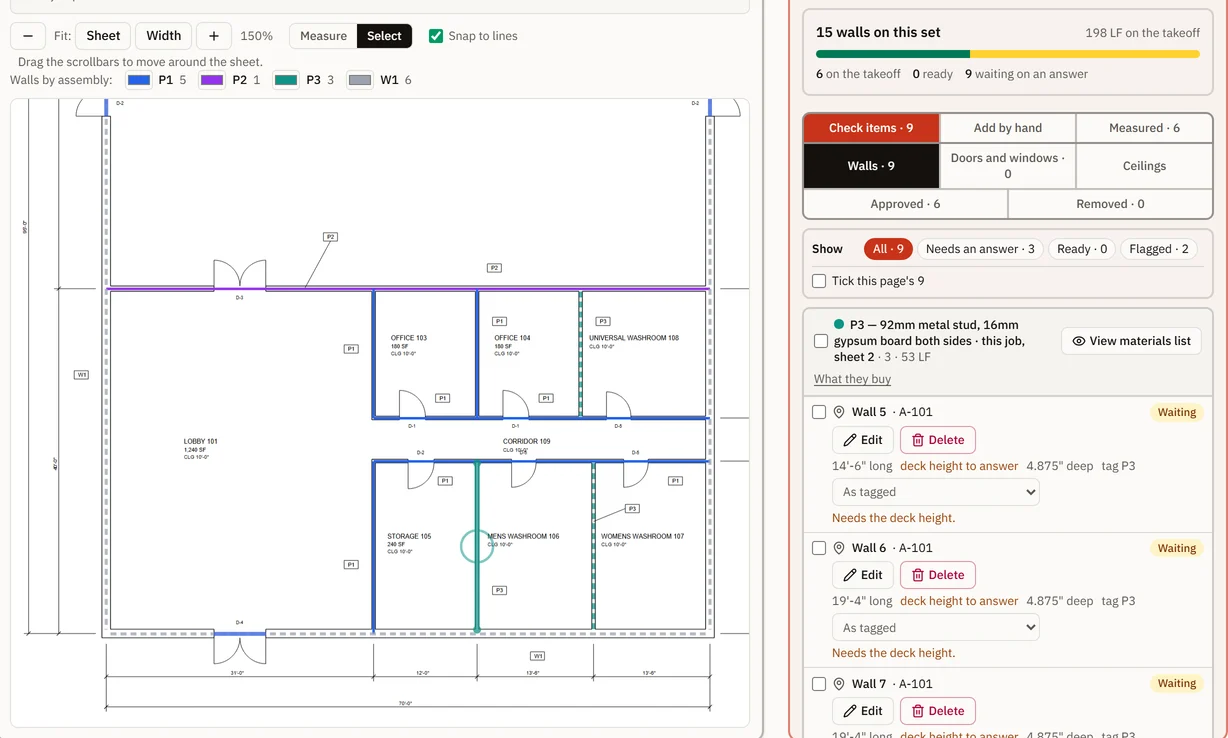
Step 4: each wall in its wall type's colour, and the Check items table beside the drawing.
Review
What is left to look at before you price, in three numbered parts. The walls are not here: they are checked on Measure. Nothing on this tab blocks you, and each row opens onto the exact text on the sheet it came from.
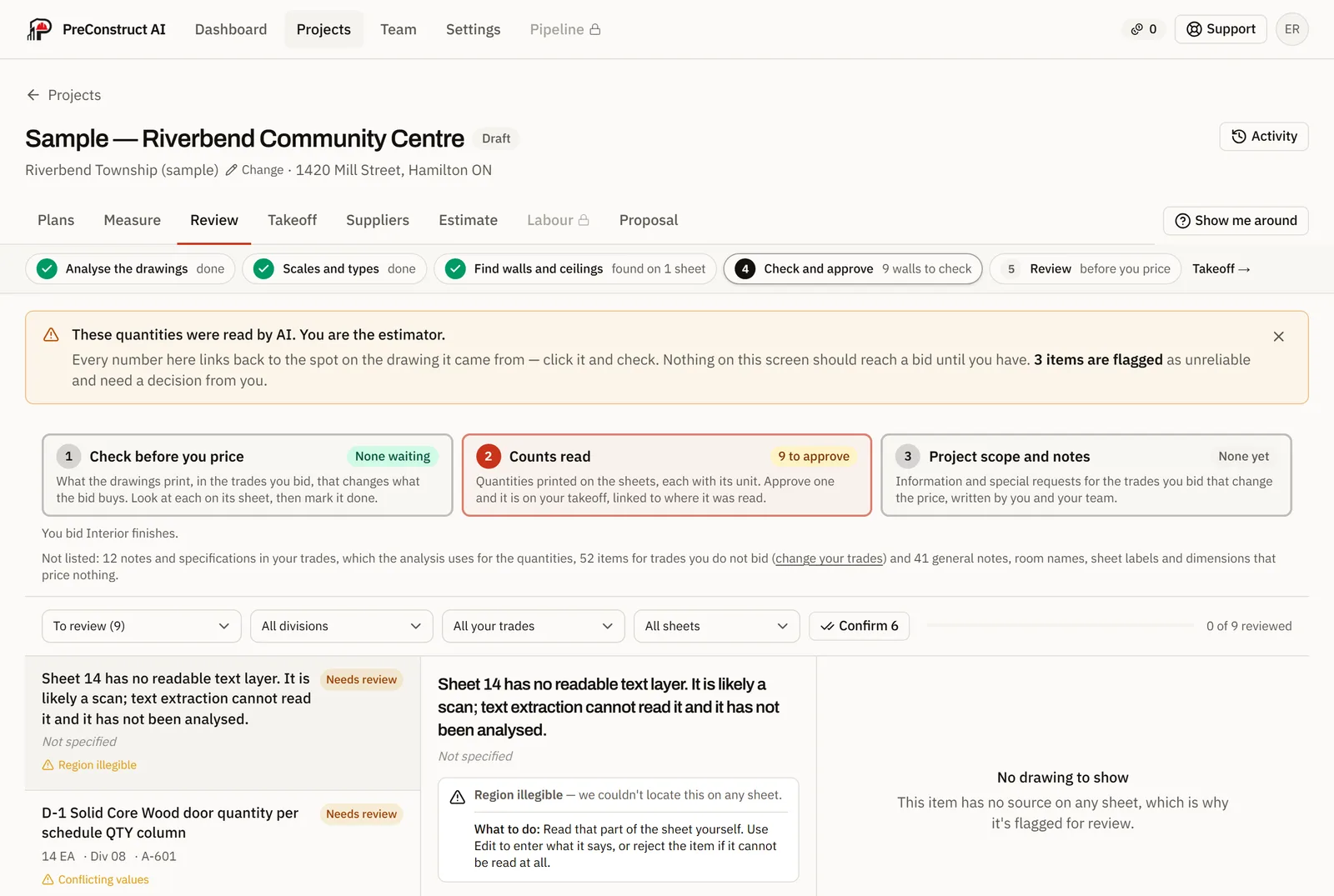
On this tab
- Check before you price: what the drawings print, in the trades you bid, that changes what the bid buys, such as a wall type tagged on the plans that no legend defines. Look at each on its sheet, then mark it done
- Counts read: quantities printed on the sheets, each with its unit. Approve one and it is on your takeoff, linked to where it was read
- Project scope and notes: your team's own notes and special requests that change the price, each tied to a trade if you like. Nothing is filled in for you
- The filters: what is left to review, one division, one of your trades, one sheet
- Opening a row to see why it was flagged, then Confirm, Edit or Reject
- Locate, which jumps the sheet to the highlighted text
Takeoff
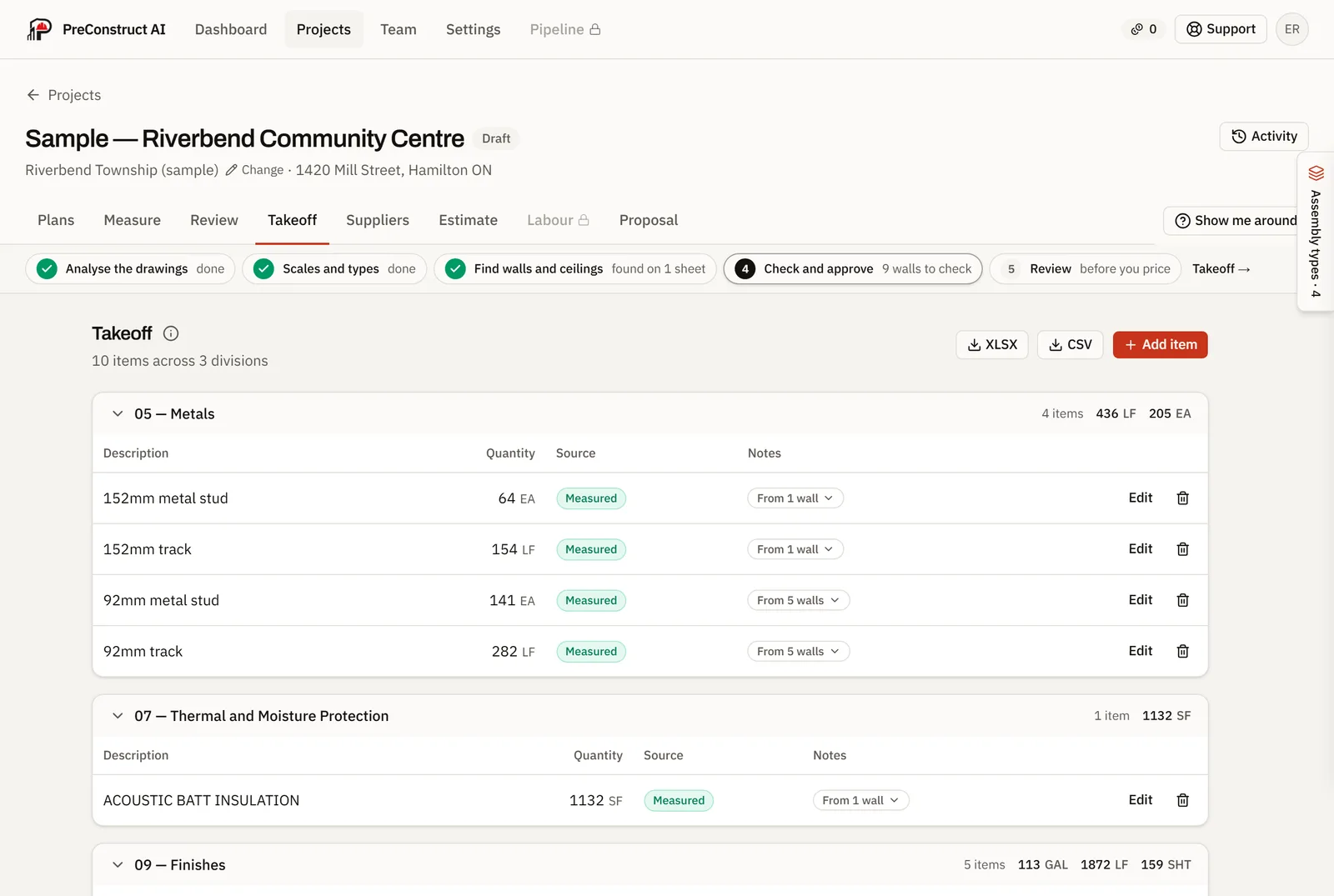
Every wall and ceiling approved on Measure and every count approved on Review lands here straight away, added up per material and sorted by division. Take an approval back and its materials leave.
On this tab
- One line per material in each division, with the division's totals
- The From… button on a line, which opens the walls, ceilings and areas it was added up from, each with its share and a way to find it on the drawing
- Add item, for anything you count yourself
- Edit and delete on a line
- Add quote, when a trade prices a scope for you
- XLSX and CSV export
Suppliers
What a supplier actually quoted for this job. This is the strongest kind of price in the system: it beats your standing price on every line it covers, because it is the paperwork you will be invoiced against.
On this tab
- Type the supplier's name and press Add quote, then paste their spreadsheet into it
- Two or three quotes side by side, line by line
- Choosing the one that prices the estimate
Estimate
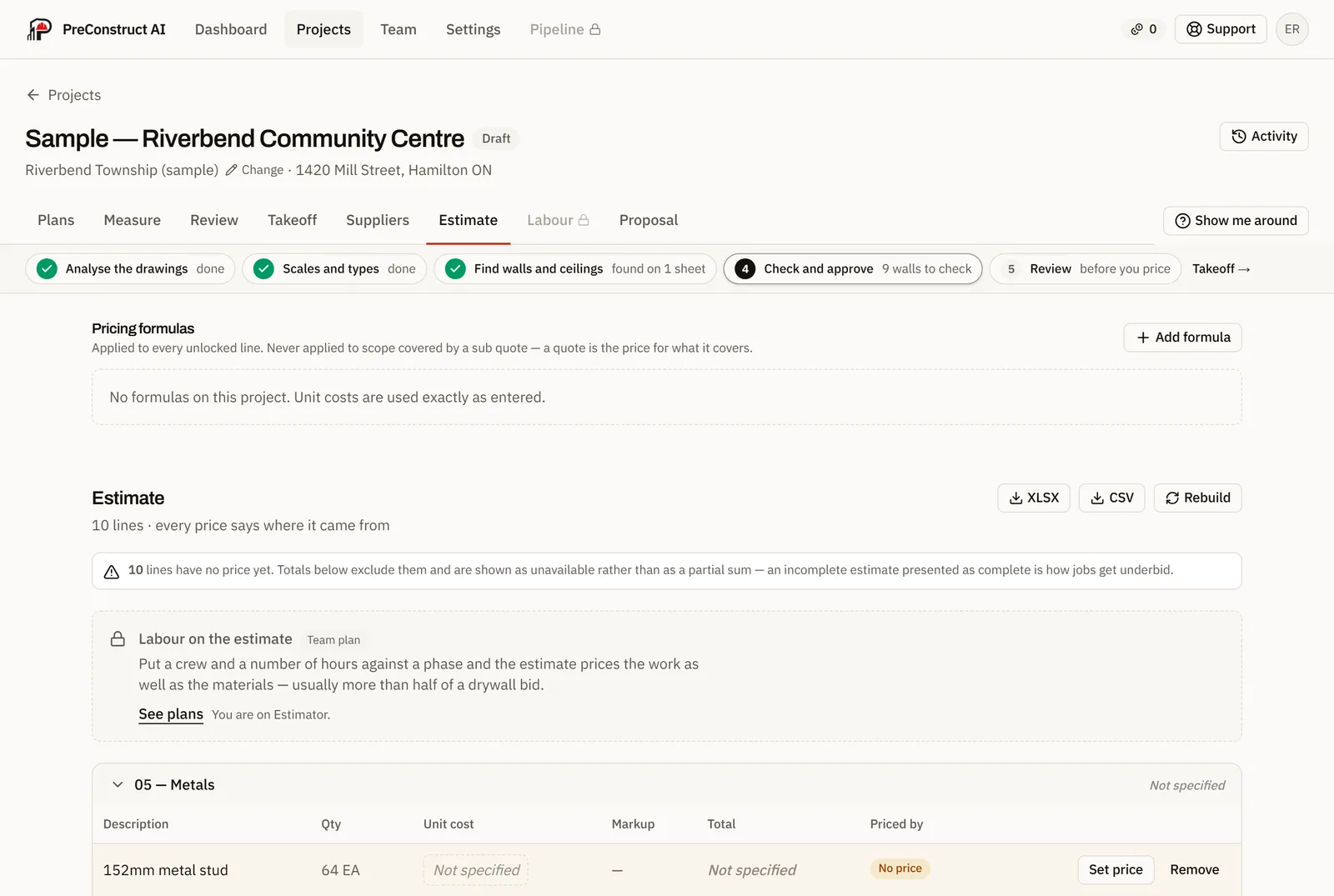
Every quantity, priced, with a badge on each line saying where its price came from. A quote beats the book, and a price you type beats both: nothing you enter is ever overwritten.
On this tab
- Set price on a line, and Edit price afterwards
- The priced-by badge on every line
- Pricing formulas: waste, labour burden and markup, added with Add formula
- Rebuild, and why typed prices survive it
- Tax: you type the rate on every job. 0 is an answer, blank is not
- Margin, for owners only and never on the proposal
- Labour on the estimate: a crew and hours against a phase, on Team and Business
- XLSX and CSV export
LabourTeam and Business
Hours bid against hours worked, both in crew-hours. The only screen here that tells you whether your rates are right, rather than whether your arithmetic is.
On this tab
- Why crews come first, and where they are set up
- Logging the hours as the job runs
- Bid against actual, once both halves exist
Proposal
The estimate as a document your client opens on their phone. What the job includes and what it does not, with every revision kept. It is made from priced estimate lines, so price the estimate first.
On this tab
- New revision, and what it captures at the moment you press it
- A proposal for one trade, when a job is bid for more than one
- By division: tick the estimate's divisions and the proposal holds only theirs
- PDF, for a client who wants a file
- Edit, for the title, notes, terms, tax and validity
- Create share link, when it expires, and revoking it
- The client accepts by typing their name
Try it on a set you have already bid
You know what that job actually bought, so you can grade the answer instead of trusting it. Your first bid is free, and there is a sample set built in that costs nothing at all.